
Setting up multiple monitors on a laptop usually turns into a messy nightmare. You run out of ports instantly. You end up buying three different adapters just to plug in your mouse, your keyboard, and your screens. Then you realize your laptop battery is dying because you forgot to plug in the power cord.
Most people buy the first hub they see, only to find out it cannot run two screens at once. Or worse, it mirrors the same image on both monitors. The real differences between these docks come down to how they handle power, what video software they use, and how hot they get during a long workday.
We looked at the top options and read thousands of real customer reviews to find out which docks actually work. In this guide, you will learn which hubs handle dual 4K screens, which ones charge your laptop, and which ones work best for Mac or Windows computers.
Quick Comparison
| # | Product | Rating | Reviews | Best For | Action |
|---|---|---|---|---|---|
| #1 | Dell Pro Dock WD25 | 4.6 | 111 | Dell Workspaces | View on Amazon |
| #2 | Dell WD19S 180W Dock | 3.8 | 823 | Fast Laptop Charging | View on Amazon |
| #3 | Anker Dual Monitor Dock | 4.3 | 6108 | Dual HDMI Setup | View on Amazon |
| #4 | Plugable Universal USB Dock | 4.5 | 1944 | Mac Screen Expansion | View on Amazon |
| #5 | Plugable Triple Display Dock | 4.3 | 1074 | Three Monitor Setups | View on Amazon |
| #6 | Plugable 13-in-1 Triple Dock | 4.4 | 1541 | Vertical Desk Setups | View on Amazon |
| #7 | Anker 13-in-1 USB-C Dock | 4.1 | 2315 | Heavy Windows Workloads | View on Amazon |
| #8 | VVB 14-in-1 USB-C Dock | 4.4 | 1361 | Travel and Portability | View on Amazon |
| #9 | Lenovo ThinkPad Gen 2 | 3.9 | 509 | ThinkPad Laptops | View on Amazon |
| #10 | Dell Universal Dock D6000S | 4.3 | 454 | Mixed Computer Desks | View on Amazon |
| #11 | Dell Universal Dock UD22 | 4.4 | 531 | Heavy Data Transfer | View on Amazon |
| #12 | HODO 8-in-1 USB-C Dock | 4.3 | 2260 | Older VGA Monitors | View on Amazon |
| #13 | Plugable UD-3900 Dock | 4.5 | 11786 | Basic Home Offices | View on Amazon |
| #14 | LIONWEI 13-in-1 Dock | 4.1 | 11757 | Quick Screen Switching | View on Amazon |
#1 Best For Dell Laptops — Dell Pro Dock WD25

This dock fits perfectly into offices that use new Dell computers. It gives workers a simple way to connect multiple screens and organize their desk.
The long connection cable makes a big difference. You can move your laptop around your desk without pulling the dock off the edge. This stops the heavy cable from bending and breaking over time.
Most buyers agree that the setup process is very fast. People who switch from other brands say this dock connects easily. A few users mention the longer cable helps them organize their desk better.
This works best if you share a desk and need to swap laptops quickly without fighting short cables.
I like how Dell built this with recycled materials. The extra cable length is a smart choice that many brands ignore. I would skip this if you do not use Dell computers, as you might miss out on the specific management features.
Compared to the Dell WD19S, this model focuses more on modern network speeds and power saving.
✅ Pros
- Includes a long attachment cable
- Takes very little time to set up
- Supports up to four displays
- Built with recycled materials
❌ Cons
- Management tools require Dell computers
- Takes up horizontal desk space
💬 What Customers Say
Most buyers agree that the setup process is very fast. People who switch from other brands say this dock connects easily. A few users mention the longer cable helps them organize their desk better.
#2 Best For Fast Charging — Dell WD19S 180W Dock

This high-power dock targets office workers who need to run heavy tasks. It pushes up to 130 watts of power to your laptop.
The massive power delivery keeps your computer charged even when you run intense programs. You never have to worry about your battery dying during a long meeting.
Many buyers praise how quickly it connects to their devices. Office workers say it cleans up their desk cables well. However, a frequent complaint involves random USB connection noises that interrupt daily work.
Use this when you need to power a demanding laptop and run two screens at the same time.
The power output stands out as the main draw here. Very few docks push this much power to a single device. But the connection noises mentioned in reviews would drive me crazy. I would only pick this if my IT department required it.
This dock gives you more power than the Dell WD25, but it has older display connections.
✅ Pros
- Delivers 130 watts of power
- Connects multiple monitors quickly
- Reduces cable clutter on your desk
❌ Cons
- Makes connection noises randomly
- Cannot use USB-C and HDMI video at the same time
💬 What Customers Say
Many buyers praise how quickly it connects to their devices. Office workers say it cleans up their desk cables well. However, a frequent complaint involves random USB connection noises that interrupt daily work.
#3 Best For Dual HDMI — Anker 8-in-1 Dual Dock

This compact hub works well for people who want to add two screens to their laptop. It takes up very little space on a desk.
The dual HDMI ports let you plug in two monitors without needing special adapters. You get a clear 4K picture on both screens without running extra software.
Most buyers agree that the setup takes no time at all. People love how easily it hides behind a laptop. A common complaint is that the device runs warm and the connection cable feels too short.
This hub shines when you travel and need to set up a dual-monitor workspace in a hotel room.
Anker usually makes reliable gear, and this hub follows that trend. I like the simple plug-and-play design. The short host cable annoys me, as it forces the hub to sit right next to your laptop. I recommend this for simple home office setups.
Compared to the Plugable docks, this Anker model is much smaller but offers fewer USB ports.
✅ Pros
- Takes up very little desk space
- Supports two 4K monitors easily
- Requires no software to set up
❌ Cons
- Gets warm during heavy use
- The host cable is only six inches long
💬 What Customers Say
Most buyers agree that the setup takes no time at all. People love how easily it hides behind a laptop. A common complaint is that the device runs warm and the connection cable feels too short.
#4 Best For Mac Users — Plugable Universal USB Dock

This vertical dock helps Mac users bypass standard screen limits. It works with nearly any modern laptop.
The DisplayLink software lets you connect two screens to computers that normally only support one. This solves a massive headache for MacBook owners who want a larger workspace.
Buyers frequently mention the outstanding customer service from the brand. Mac owners love that it solves their external monitor problems. Some users point out that downloading the driver takes an extra step before use.
This fits perfectly on a small desk where you need multiple screens but lack horizontal space.
The vertical design saves so much room on a crowded desk. I appreciate that it includes both USB-C and normal USB cables. I would not pick this if you need to charge your laptop, as it does not send power back to the computer.
Unlike the Anker 8-in-1, this dock stands upright and requires you to install a software driver first.
✅ Pros
- Works with older and newer computers
- Stands vertically to save desk space
- Includes helpful customer support
❌ Cons
- Does not charge your laptop
- Requires software installation before use
💬 What Customers Say
Buyers frequently mention the outstanding customer service from the brand. Mac owners love that it solves their external monitor problems. Some users point out that downloading the driver takes an extra step before use.
#5 Best For Three Screens — Plugable Triple Dock

This flat docking station targets power users who need three monitors. It handles complex office setups easily.
The three HDMI ports mean you do not have to buy strange display adapters. You just plug standard HDMI cables straight into the back and start working.
Most buyers agree that running three monitors works smoothly. IT workers praise the reliability for office deployments. A complaint that comes up often is that the display software requires a manual restart after system updates.
Set this up in a permanent home office where you leave your monitors connected all the time.
Finding a dock that supports three standard HDMI cables is rare. I really like how this unit keeps everything organized in a row. You must check your laptop specs first, because the first HDMI port requires specific laptop hardware to work.
This model lays flat and charges your laptop, unlike the vertical Plugable dock.
✅ Pros
- Connects three HDMI monitors at once
- Charges your laptop while you work
- Stays cool during heavy use
❌ Cons
- First HDMI port requires specific laptop hardware
- Software needs restarting after computer updates
💬 What Customers Say
Most buyers agree that running three monitors works smoothly. IT workers praise the reliability for office deployments. A complaint that comes up often is that the display software requires a manual restart after system updates.
#6 Best For Vertical Setups — Plugable 13-in-1 Dock

This tall docking station offers massive connectivity for heavy desk setups. It provides thirteen different ports for all your gear.
The front-facing 20-watt charging port makes a huge difference. You can fast-charge your phone right from the dock without searching for a wall plug.
Customers who switched to this say it cleans up their desk completely. Buyers appreciate the mix of old and new USB ports. A few users notice a small delay when dragging items between their monitors.
This works best for creative workers who have multiple hard drives, cameras, and screens to plug in.
The port layout makes a lot of sense. Putting the phone charger and SD card reader on the front saves you from reaching behind your desk. The visual lag mentioned in reviews makes me hesitate to recommend this for fast-paced video editing.
This offers more port variety than the flat Plugable dock, including an SD card reader.
✅ Pros
- Features thirteen different connection ports
- Charges your phone from the front
- Stands upright to save desk space
❌ Cons
- Can cause slight screen lag
- Does not play protected video streams
💬 What Customers Say
Customers who switched to this say it cleans up their desk completely. Buyers appreciate the mix of old and new USB ports. A few users notice a small delay when dragging items between their monitors.
#7 Best For Extra Ports — Anker 13-in-1 USB-C Dock

This heavy-duty dock handles intense workloads for Windows users. It offers a huge mix of video and data connections.
The included 135-watt power supply means the dock powers itself and your laptop easily. You do not have to rely on your computer to run your accessories.
Most buyers agree that the build quality feels excellent. People love pressing the power button to turn off their screens at night. A frequent complaint involves wireless mouse lag when using the front USB ports.
Keep this on a large desk where you need to connect both modern USB-C drives and older USB accessories.
The physical power button is a brilliant feature. You can turn off your whole desk setup with one press. I would skip this if you use a Mac, as it only mirrors screens instead of extending them.
Compared to the vertical Plugable dock, this Anker model lays flat and feels heavier on the desk.
✅ Pros
- Includes its own heavy-duty power supply
- Features a physical power button
- Runs quietly without whining noises
❌ Cons
- Mac computers only mirror the displays
- Front USB ports cause lag with wireless mice
💬 What Customers Say
Most buyers agree that the build quality feels excellent. People love pressing the power button to turn off their screens at night. A frequent complaint involves wireless mouse lag when using the front USB ports.
#8 Best For Travel — VVB 14-in-1 USB-C Dock
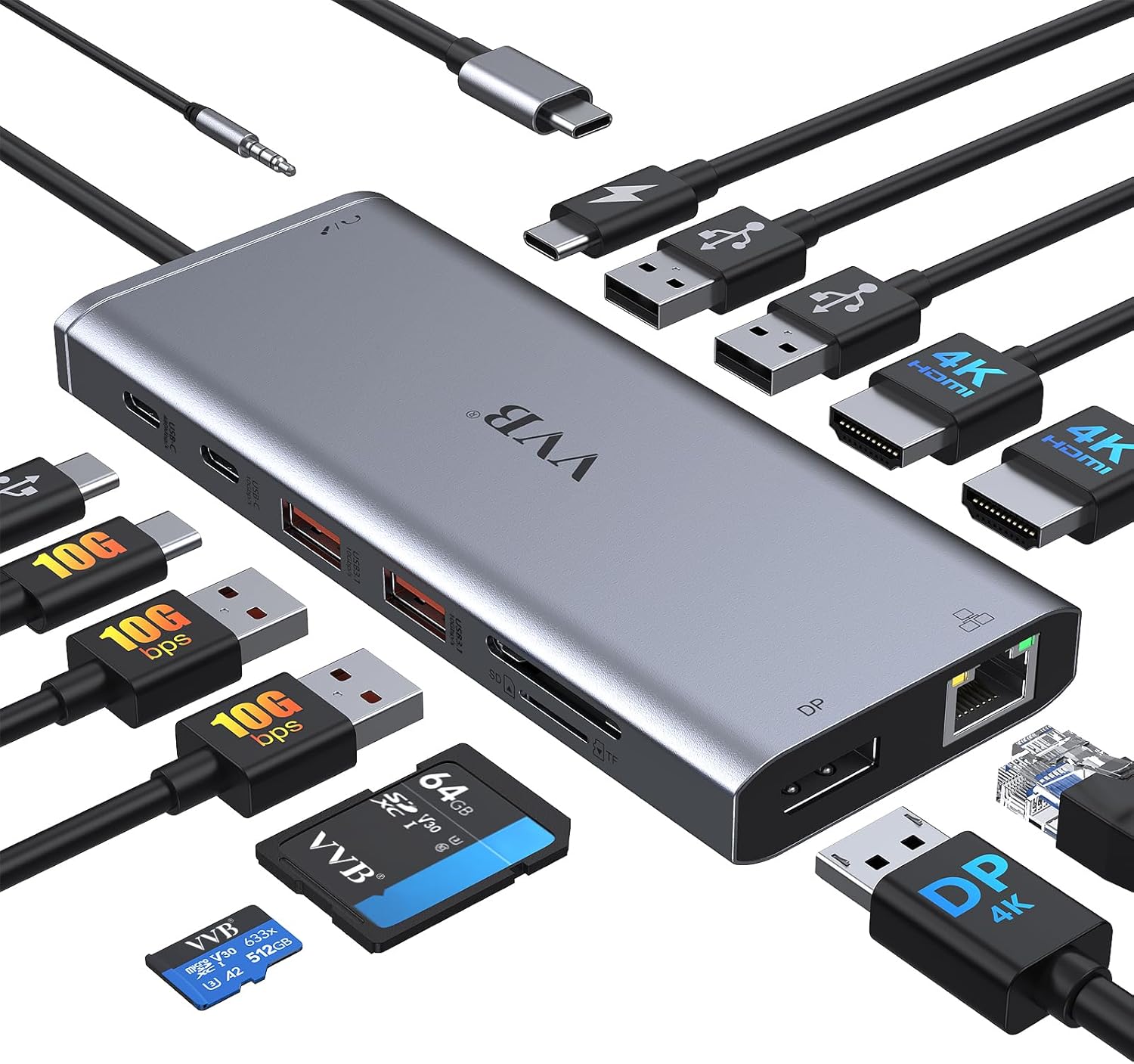
This slim hub works well for people who move between different offices. It packs fourteen ports into a very small frame.
The mix of DisplayPort and HDMI gives you options. You can connect to almost any monitor you find in a shared office space without panicking over cables.
Buyers frequently mention how well this device organizes their messy cables. Travelers say it fits easily into small laptop bags. Some users point out that it feels hot to the touch after running two monitors.
Toss this in your laptop bag when you need to work from a hotel or a shared workspace.
I like how many ports they squeezed into such a small device. It offers great flexibility for different monitor types. The heat buildup worries me slightly, so I suggest keeping it in an open area on your desk.
This hub is much easier to carry in a bag than the large Anker 13-in-1 dock.
✅ Pros
- Very light and easy to carry
- Offers both HDMI and DisplayPort
- Includes SD card readers
❌ Cons
- Runs warm during heavy use
- Audio output lacks amplification
💬 What Customers Say
Buyers frequently mention how well this device organizes their messy cables. Travelers say it fits easily into small laptop bags. Some users point out that it feels hot to the touch after running two monitors.
#9 Best For ThinkPad Laptops — Lenovo Gen 2 Dock

This official Lenovo dock pairs perfectly with ThinkPad laptops. It brings enterprise-level control to a home office.
The dock supports network booting and remote wake features. This lets company IT departments manage the laptop even when the user works from home.
Most buyers agree that it connects to Lenovo laptops instantly. People like the clean design and solid feel. A complaint that comes up often is that the dock struggles to run very large external monitors.
Use this if your company gave you a ThinkPad and you want a guaranteed compatible dock.
If you use a ThinkPad, staying within the same brand usually prevents headaches. The red bottom plate looks sharp on a desk. I would not buy this for non-Lenovo laptops, as you pay extra for features you cannot use.
This dock offers more IT management tools than the Anker or Plugable options, but fewer video ports.
✅ Pros
- Matches ThinkPad laptops perfectly
- Supports remote IT management
- Provides an easy one-cable connection
❌ Cons
- Only has one HDMI port
- Struggles with very large monitors
💬 What Customers Say
Most buyers agree that it connects to Lenovo laptops instantly. People like the clean design and solid feel. A complaint that comes up often is that the dock struggles to run very large external monitors.
#10 Best For Shared Desks — Dell Universal Dock D6000S

This universal dock works with nearly any computer brand. It helps offices that use a mix of different laptops.
The hybrid cable includes both USB-C and standard USB connectors. You can plug in a brand new laptop or an older model without hunting for adapters.
Buyers love how easily it switches between Mac and Windows computers. Office workers say it handles multiple screens perfectly. Gamers frequently complain that the display software ruins their gaming experience.
Set this up in a family office where different people plug in different laptops throughout the week.
The attached hybrid cable solves so many connection problems. I love that it works across different operating systems easily. You should strictly avoid this if you plan to play video games, as the video software causes too much lag.
Unlike the Dell WD25, this model works just as well with Mac computers as it does with Dell laptops.
✅ Pros
- Connects via USB-C or older USB ports
- Supports dual 4K monitors
- Charges the connected laptop
❌ Cons
- Causes visual lag in video games
- The attached cable cannot be replaced
💬 What Customers Say
Buyers love how easily it switches between Mac and Windows computers. Office workers say it handles multiple screens perfectly. Gamers frequently complain that the display software ruins their gaming experience.
#11 Best For Heavy Workloads — Dell Universal Dock UD22

This high-end Dell dock offers massive connectivity for demanding users. It provides a huge amount of power and data speed.
The 96-watt power delivery charges large laptops quickly. You can run heavy software all day without draining your battery.
Most buyers agree that the construction feels premium and heavy. People love how fast it charges their laptops. A common complaint is that connected mice sometimes refuse to wake up until the dock is restarted.
This handles complex desk setups where you have multiple hard drives and monitors running at once.
The build quality here feels fantastic. The ports feel tight and secure when you plug things in. The sleep mode issues mentioned in reviews annoy me, as you sometimes have to unplug the dock to fix it.
This dock offers faster data speeds and more power than the older Dell D6000S model.
✅ Pros
- Delivers 96 watts of charging power
- Feels very durable and heavy
- Includes a high-quality power brick
❌ Cons
- USB devices sometimes fail to wake from sleep
- Runs hot in tight desk spaces
💬 What Customers Say
Most buyers agree that the construction feels premium and heavy. People love how fast it charges their laptops. A common complaint is that connected mice sometimes refuse to wake up until the dock is restarted.
#12 Best For Older Monitors — HODO 8-in-1 USB-C Dock

This budget-friendly hub helps people connect older screens to new laptops. It offers a rare mix of modern and classic video ports.
The built-in VGA port lets you use older monitors without buying an adapter. This saves you money if you want to reuse an old screen you already own.
Buyers frequently praise how easy it is to connect older monitors. People like the compact design for travel. A complaint that comes up often is that the hub stops working completely after a few months.
Keep this in your bag to connect to older projectors in meeting rooms or classrooms.
I appreciate that companies still include VGA ports for older gear. The simple design makes this an easy choice for basic setups. However, the reports of units dying quickly make me view this as a temporary fix rather than a long-term tool.
This hub gives you a VGA port, which the Anker and Plugable models completely lack.
✅ Pros
- Includes a VGA port for older screens
- Very easy to set up
- Small and easy to travel with
❌ Cons
- Using VGA drops the resolution of all screens
- Some units fail after a few months
💬 What Customers Say
Buyers frequently praise how easy it is to connect older monitors. People like the compact design for travel. A complaint that comes up often is that the hub stops working completely after a few months.
#13 Best For Basic Setups — Plugable UD-3900 Dock

This classic docking station helps people build a simple dual-monitor desk. It skips fancy features to focus on basic reliability.
The six standard USB ports give you plenty of room for all your accessories. You can plug in your mouse, keyboard, printer, and webcam all at once.
Most buyers agree that this dock lasts for years without breaking. People love how many standard USB ports it offers. A few users mention that setting up the display software takes a little patience.
Set this up in a home office where you use standard high-definition monitors and normal USB accessories.
This dock has been around for years because it simply works. I love the massive amount of standard USB ports on the back. I would skip this if you own 4K monitors, as the older video ports cannot handle that much detail.
Unlike the newer Plugable models, this older version does not charge your laptop at all.
✅ Pros
- Features six standard USB ports
- Highly reliable over many years
- Works with almost any laptop
❌ Cons
- Does not support 4K resolution
- Will not charge your laptop battery
💬 What Customers Say
Most buyers agree that this dock lasts for years without breaking. People love how many standard USB ports it offers. A few users mention that setting up the display software takes a little patience.
#14 Best For Quick Switching — LIONWEI 13-in-1 Dock

This wide docking station offers a unique way to manage your screens. It packs a massive amount of ports into a flat design.
The physical display switch button sits right on top. You can instantly change how your monitors work without digging through computer menus.
Buyers frequently mention how much they use the physical display button. People like that it handles three screens without trouble. A common complaint is that the short cable makes it hard to position on a desk.
Use this when you frequently need to turn off extra monitors to focus on a single screen.
The display switch button is incredibly clever. I wish more brands included physical controls like this. The short connection cable drives me crazy, as it forces this wide dock to sit awkwardly close to your computer.
This dock offers a physical display button, which none of the other hubs on this list provide.
✅ Pros
- Features a physical display switch button
- Supports three monitors easily
- Includes lots of standard USB ports
❌ Cons
- The laptop connection cable is very short
- HDMI ports sometimes fail over time
💬 What Customers Say
Buyers frequently mention how much they use the physical display button. People like that it handles three screens without trouble. A common complaint is that the short cable makes it hard to position on a desk.
Frequently Asked Questions
Does a docking station charge my laptop?
Why do my two external monitors show the exact same picture?
Can I plug a docking station into an older USB port?
Do I need to install software to use a docking station?
Conclusion
If you want the best overall experience, the Plugable Triple Display Dock stands out. It handles three monitors easily, charges your laptop, and keeps your desk organized without causing headaches.
If you just need a simple, portable way to connect two HDMI screens, the Anker 8-in-1 Dual Monitor Dock works perfectly. It takes up very little space and requires no software to set up. Pick the dock that matches the cables you already own, and enjoy your new workspace.